Attention: Here be dragons
This is the latest
(unstable) version of this documentation, which may document features
not available in or compatible with released stable versions of Godot.
Checking the stable version of the documentation...
Setting up the game area
W tej pierwszej części przygotujemy obszar gry. Zacznijmy od zaimportowania początkowych zasobów (assets) i ustawieniu sceny gry.
We've prepared a Godot project with the 3D models and sounds we'll use for this tutorial, linked in the index page. If you haven't done so yet, you can download the archive here: Squash the Creeps assets.
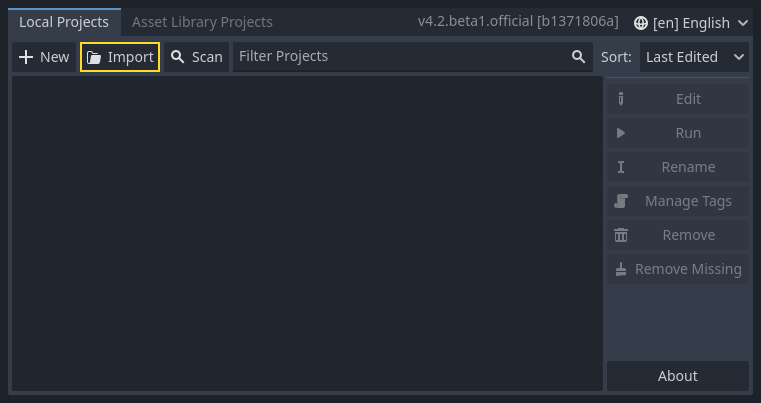
Once you've downloaded it, extract the .zip archive on your computer. Open the Godot Project Manager and click the Import button.
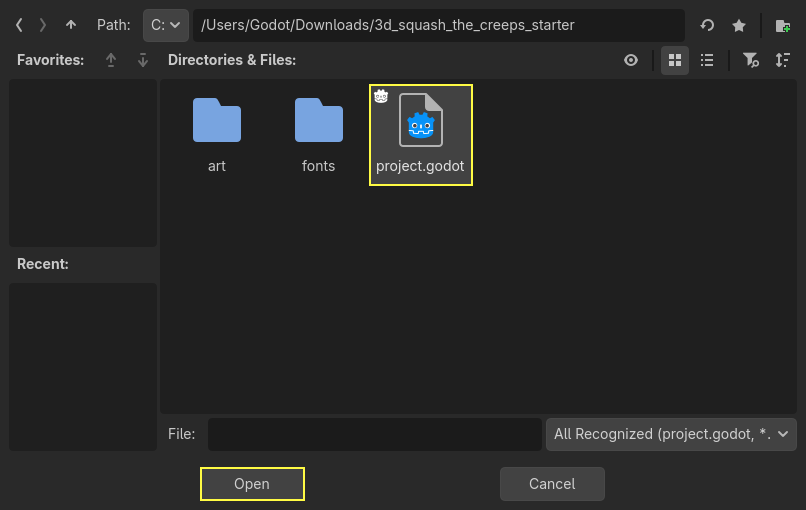
In the import popup, enter the full path to the freshly created directory
3d_squash_the_creeps_starter/. You can click the Browse button on the right to
open a file browser and navigate to the project.godot file the folder
contains.
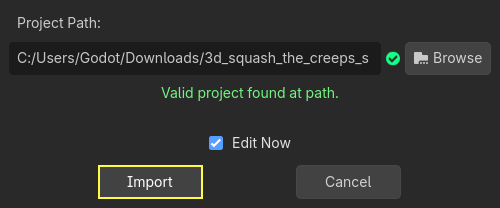
Click Import to open the project in the editor.
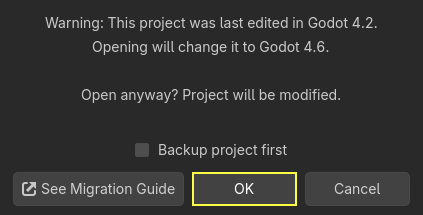
A window notifying you that the project was generated by an older Godot version may appear. Click OK to convert the project to your current Godot version.
If it doesn't open immediately, open the project from your project list.
Projekt zawiera ikonkę oraz dwa foldery: art/ i fonts/. Znajdziesz tam zasoby graficzne i muzykę, których będziemy używać w grze.
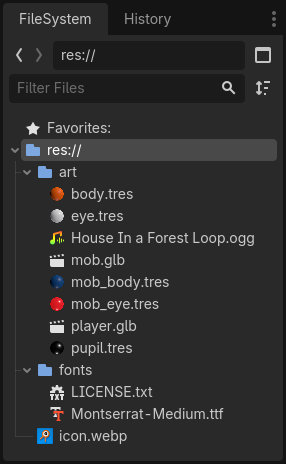
Są tam dwa modele 3D, player.glb i mob.glb, materiały będące składowymi tych modeli oraz plik z muzyką.
Ustawianie obszaru, gdzie będzie toczyć się gra
We're going to create our main scene with a plain Node as its root. In the
Scene dock, click the Add Child Node button represented by a "+" icon in the
top-left and double-click on Node. Name the node Main. An alternate method to rename the node is to right-click on Node and choose Rename (or F2). Alternatively, to add
a node to the scene, you can press Ctrl + A (Cmd + A on macOS).
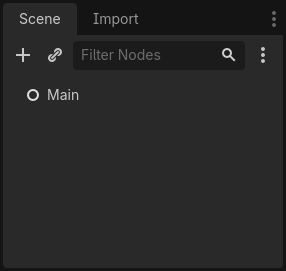
Save the scene as main.tscn by pressing Ctrl + S (Cmd + S on macOS).
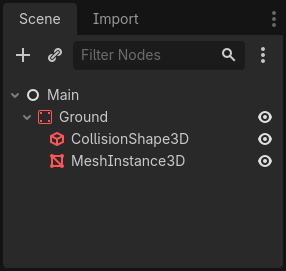
Zaczniemy od dodania poziomu podłogi, która zapobiegnie opadaniu postaci. Aby utworzyć statyczne kolidery (static collider), takie jak podłogi, ściany lub inne nieruchome przeszkody, możesz użyć węzłów StaticBody3D. Wymagane jest dodanie węzłów podrzędnych CollisionShape3D w celu zdefiniowania obszaru kolizji. Po wybraniu węzła Main dodaj węzeł StaticBody3D, a następnie CollisionShape3D. Zmień nazwę StaticBody3D na Ground.
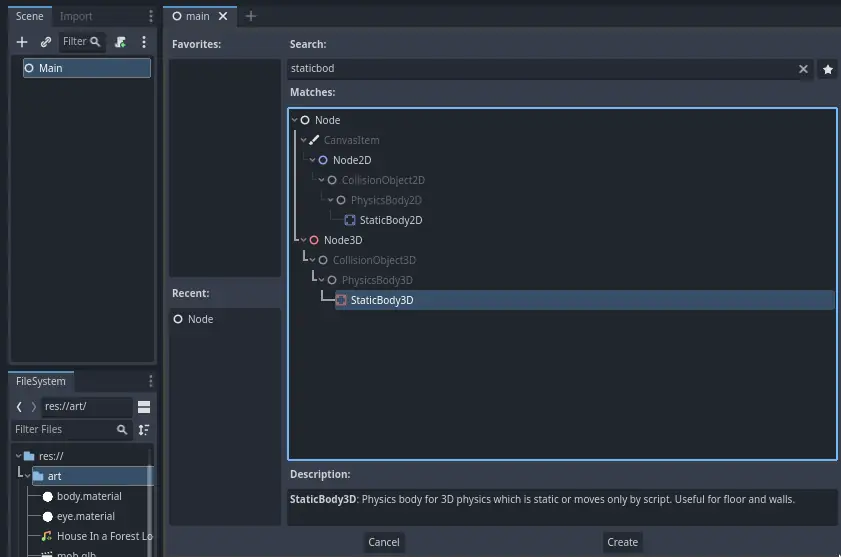
Twoja scena powinna wyglądać tak
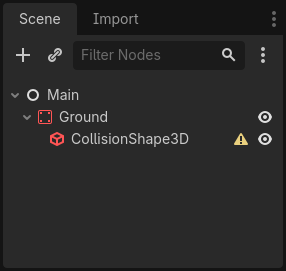
A warning sign next to the CollisionShape3D appears because we haven't defined its shape. If you click the icon, a popup appears to give you more information.
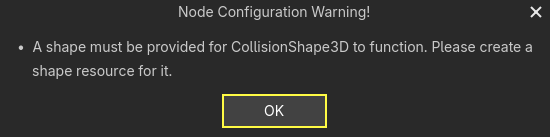
Aby utworzyć kształt, wybierz węzeł CollisionShape3D, przejdź do Inspektora i kliknij pole <empty> obok właściwości Shape. Utwórz nowy BoxShape3D.
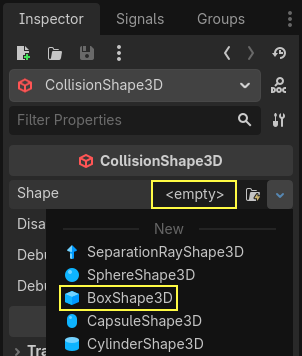
Kształt pudełka jest idealnie dopasowany do płaskiego podłoża i ścian. Jego grubość sprawia, że niezawodnie blokuje nawet szybko poruszające się obiekty.
A box's wireframe appears in the viewport with three orange dots. You can click
and drag these to edit the shape's extents interactively. We can also precisely
set the size in the inspector. Click on the BoxShape3D to expand the resource.
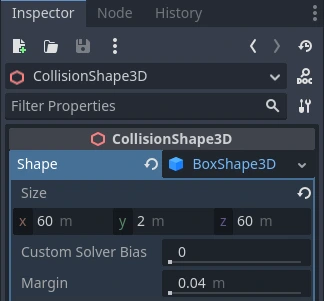
Set its Size to 60 on the X-axis, 2 for the Y-axis, and 60 for
the Z-axis.
Collision shapes are invisible. We need to add a visual floor that goes along
with it. Select the Ground node and add a MeshInstance3D as its child.
In the Inspector, click on the field next to Mesh and create a BoxMesh resource to create a visible box.
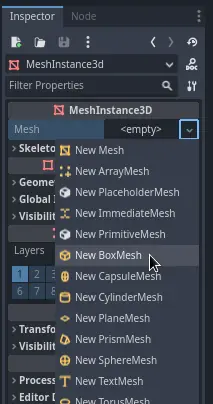
Once again, it's too small by default. Click the box icon to expand the
resource and set its Size to 60, 2, and 60.
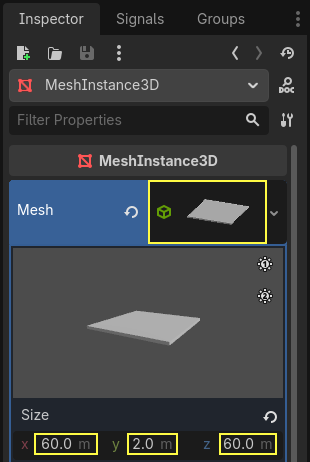
You should see a wide grey slab that covers the grid and blue and red axes in the viewport.
We're going to move the ground down so we can see the floor grid. To do this, the grid snapping feature can be used. Grid snapping can be activated 2 ways in the 3D editor. The first is by pressing the Use Snap button (or pressing the Y key). The second is by selecting a node, dragging a handle on the gizmo then holding Ctrl (Cmd on macOS) while holding the selected node.

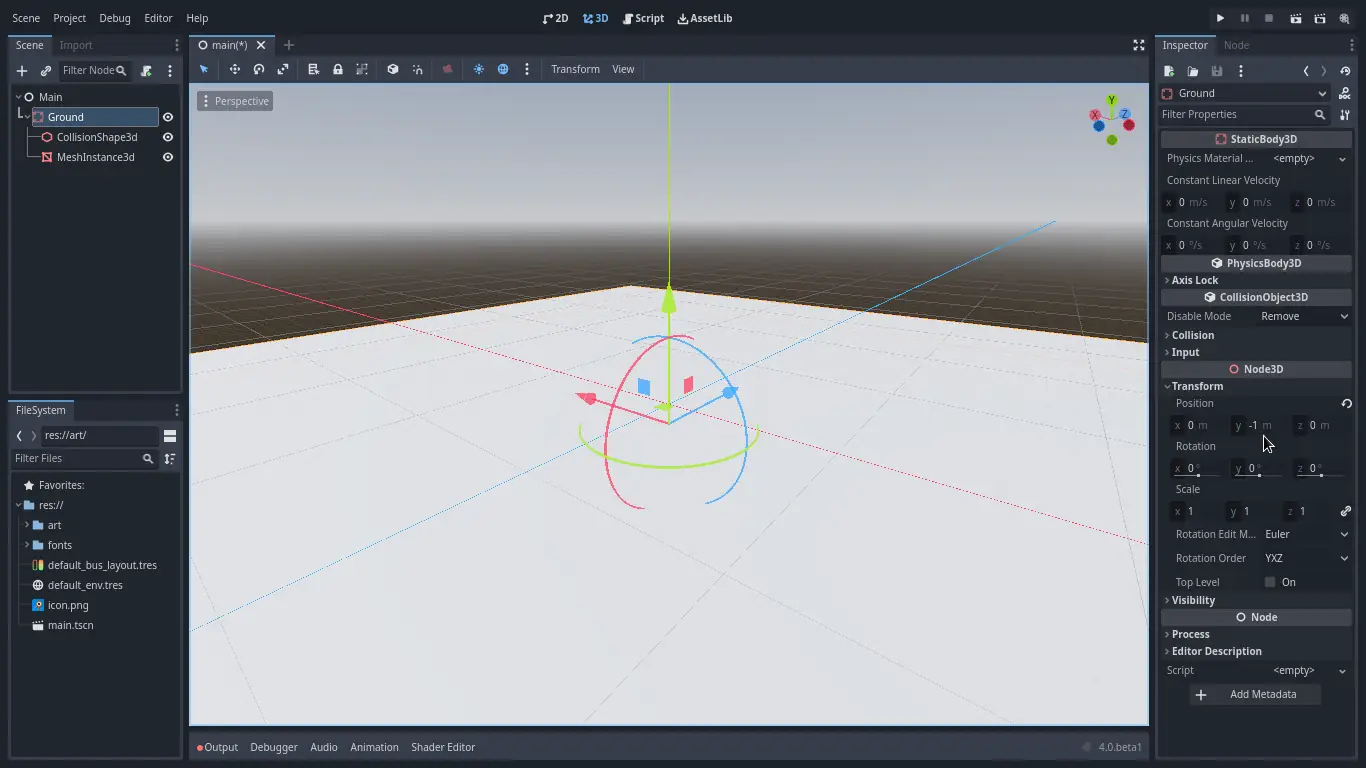
Start by setting snapping with your preferred method. Then move the Ground node using the Y-axis (the green arrow on the gizmo).
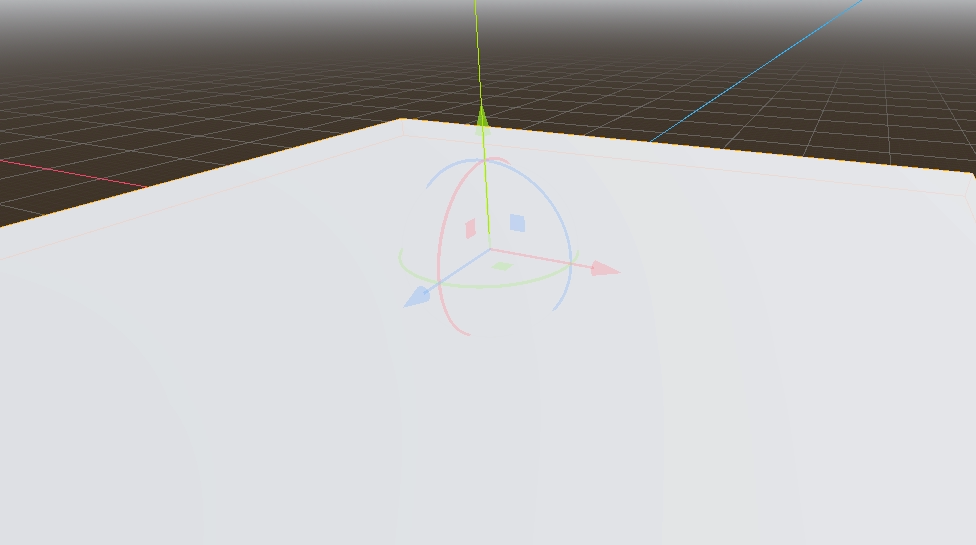
Informacja
If you can't see the 3D object manipulator like on the image above, ensure the Transform Mode is active in the toolbar above the view.
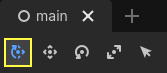
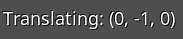
Move the ground down 1 meter, in order to have a visible editor grid. A label in the bottom-left corner of the
viewport tells you how much you're translating the node.
Informacja
Moving the Ground node down moves both children along with it. Ensure you move the Ground node, not the MeshInstance3D or the CollisionShape3D.
Ultimately, Ground's transform.position.y should be -1
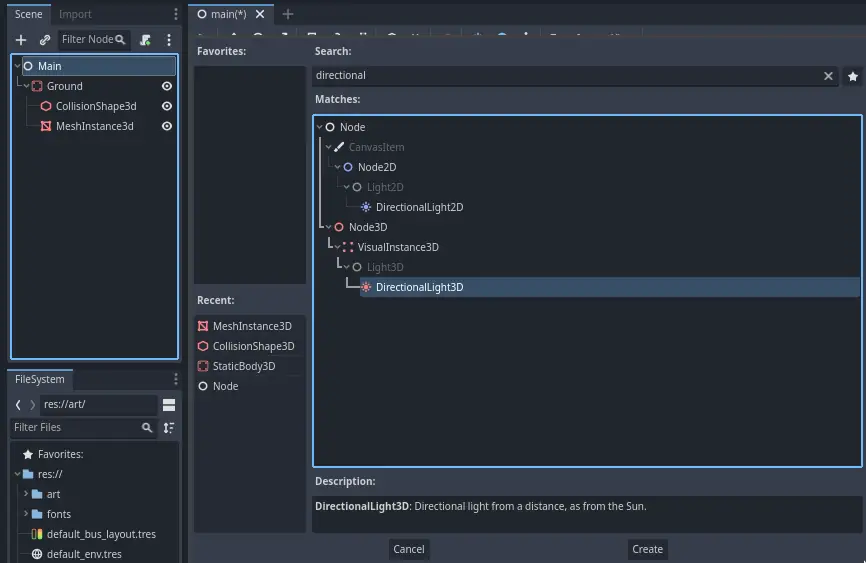
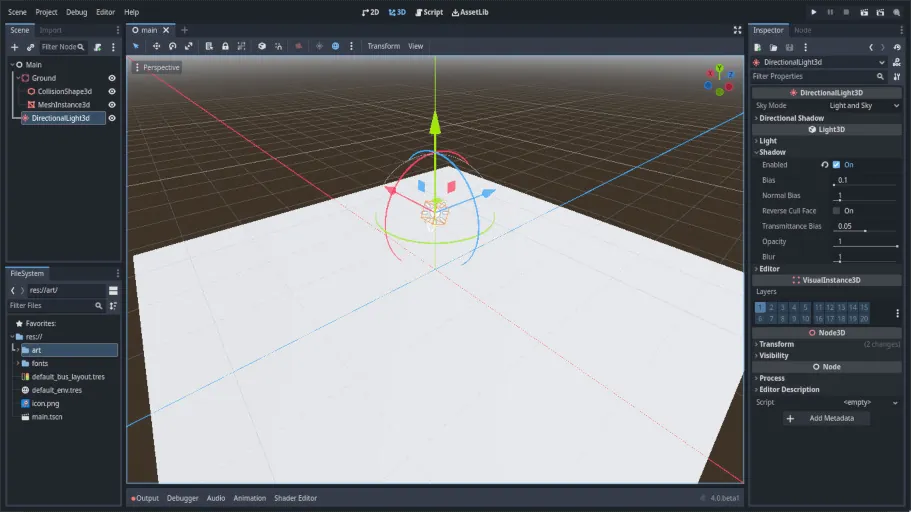
Let's add a directional light so our scene isn't all grey. Select the Main
node and add a child node DirectionalLight3D.
We need to move and rotate the DirectionalLight3D node. Move it up by clicking and dragging on the manipulator's green arrow and click and drag on the red arc to rotate it around the X-axis, until the ground is lit.
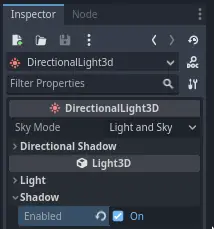
In the Inspector, turn on Shadow by clicking the checkbox.
Na tym etapie, Twój projekt powinien wyglądać tak.
That's our starting point. In the next part, we will work on the player scene and base movement.